Before you start
- An Android tablet issued by the field team (charged, with mobile data or Wi-Fi).
- The CSEntry app installed (Step 1).
- Your sync username and password — given by your supervisor; keep it private.
-
The CSWeb sync server address (for CSEntry):
https://csweb.asiansocial.org/csweb/api.
1. Installing CSEntry (one time)
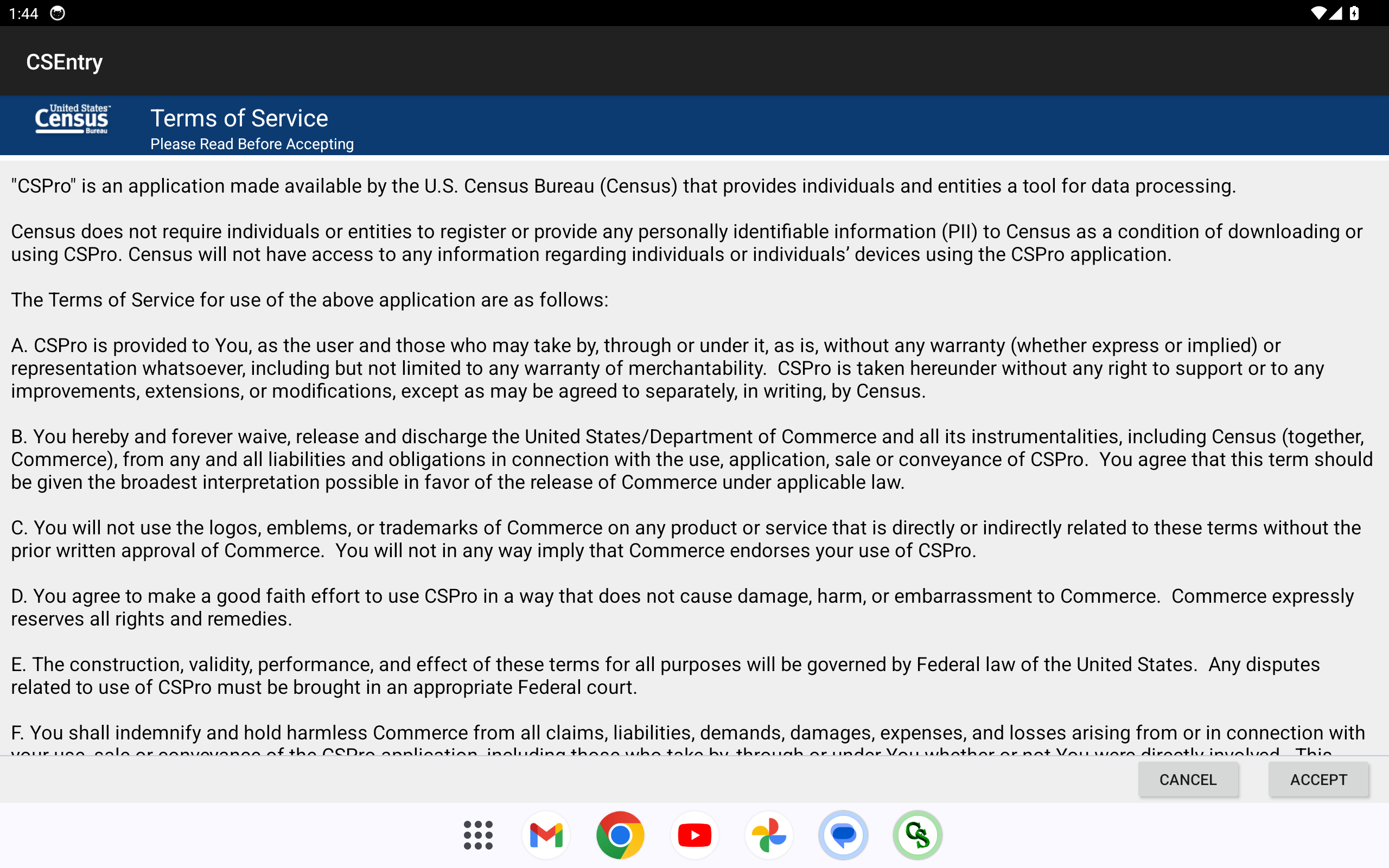
- Open the Google Play Store.
- Search “CSEntry” (by the U.S. Census Bureau).
- Tap Install, wait for it to finish, then Open.
If your tablet was pre-configured by the field team, CSEntry may
already be installed — skip to Step 2.
2. Connecting your tablet to the survey server (one time)
This tells CSEntry where to download the survey from.
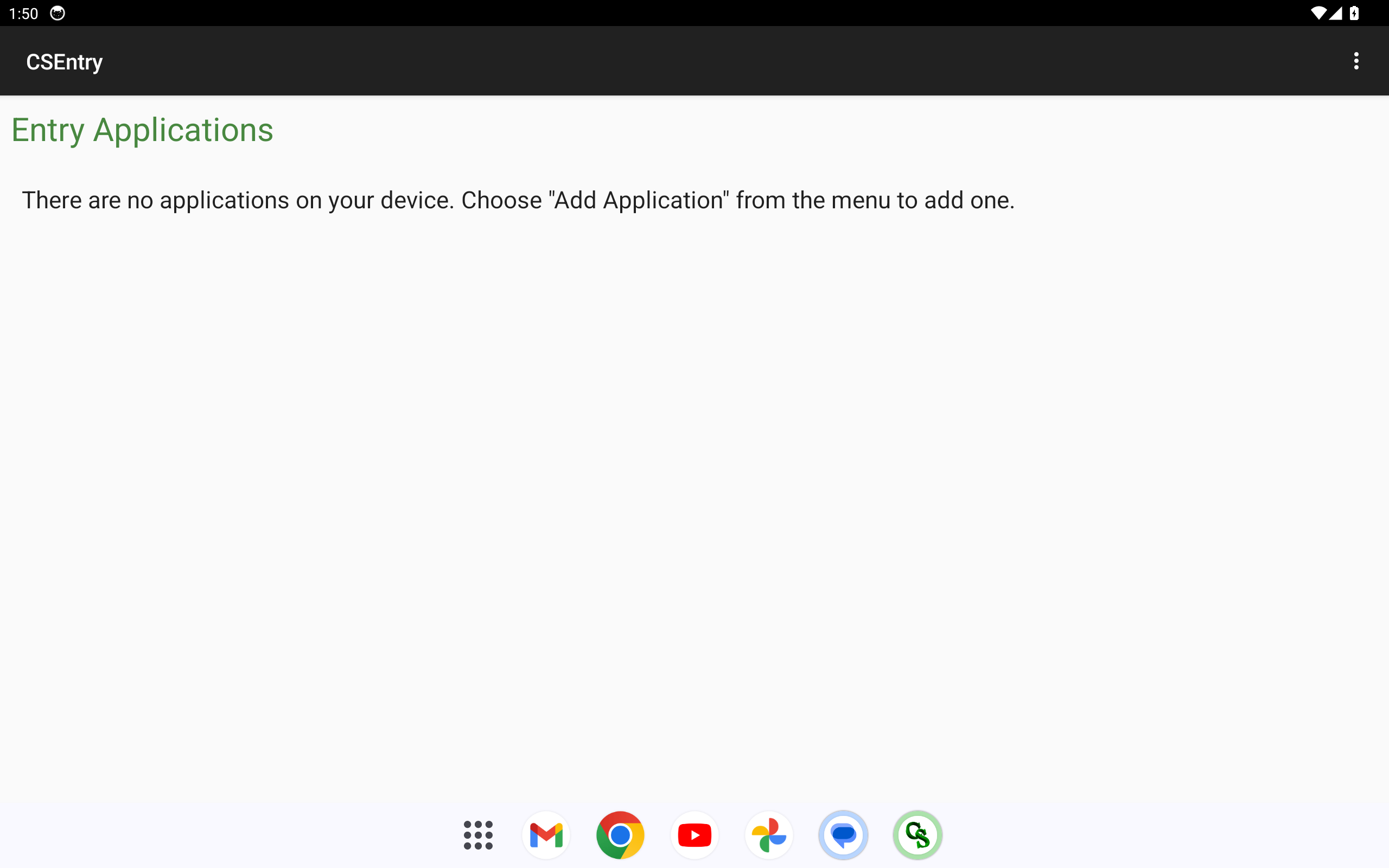
- In CSEntry, tap ⋮ → Add Application → CSWeb server.
- Server address:
https://csweb.asiansocial.org/csweb/api(it is usually already filled in). Tap Connect. - Sign in with your username and password when asked. The list of available surveys appears.
3. Downloading the survey
- In the list of available surveys, find the one you’re assigned to — FacilityHeadSurvey (F1), PatientSurvey (F3), or HouseholdSurvey (F4).
- Tap Install (or Update if it shows “New version available”). CSEntry downloads the questionnaire.
- When it finishes, the survey appears on your CSEntry home screen.
Keeping the survey current: when a new build is
released, go back to ⋮ → Add Application → CSWeb server →
Connect and tap Update. If an update ever
looks stale (old screens, see Step 6), the reliable fix is to
remove the survey and add it again from the server —
that always pulls the latest. The “⋮ → Update Installed
Applications” shortcut can miss new versions.
4. Choosing your language
The survey runs in English plus the local dialects that have been translated (Cebuano, Bisaya, Waray, Bicolano — and Hiligaynon for F1). You can switch any time during an interview.
- Open the survey → menu → Language.
- Pick the language you’ll use with this respondent.
If a question hasn’t been translated yet, it shows in
English — that’s expected; just read it as-is.
5. Starting a new interview (a “case”)
- On the survey home, tap Add / New case.
-
Fill the ID block in order — these identify the
facility and the interview:
Region → Province/HUC → City/Municipality → Facility No. → Case sequence. Each choice narrows the next (pick a region and only its provinces appear — the PSGC cascade). Together they form the 12-digit case key.
Use the case keys your supervisor assigns. A key whose area code
doesn’t match a real place is rejected at the start of the
case — so don’t invent or guess one.
6. Answering questions & how the app moves
- One question per screen. Tap your answer (or type a number), then Next (→) to continue.
- Back (←) returns to the previous question if you need to fix an answer.
- Skip logic is automatic: the app only shows questions that apply. If a question is skipped, that’s correct — don’t worry that you “missed” it.
- Single-choice = pick one. Multi-choice = tap all that apply, then Next.
- “None of the above” / “I don’t know” behave specially on some questions (they clear other choices).
7. Special screens you’ll meet
- Consent: if the respondent declines, choose the refuse option — the app ends the interview cleanly.
- GPS: at the facility, the app captures location automatically — allow it a moment to get a fix.
- Photo (F1): take the verification photo when prompted.
- Roster (F4 Household): add one row per household member; you can edit or remove members.
- Expenditure grid (F4): enter the peso amounts in each box.
8. When the app warns you
- Soft warning (yellow): the value looks unusual — check it; you can continue if it’s correct.
- Hard stop (red): the value isn’t allowed (e.g., age out of range) — you must fix it to continue.
9. Pausing & resuming
- CSEntry auto-saves as you go. To stop mid-interview, just go Back to the case list — your answers are kept.
- To resume: open the survey, tap the partial case, and continue where you left off.
10. Finishing an interview
- Answer the last question → the app asks to save the case.
- Confirm the disposition (completed / refused / etc.) if prompted.
- The case is now marked done on your case list.
11. Sending your work to the server (sync up) — do this daily
- Connect to Wi-Fi or mobile data.
- From your survey’s case list, tap Synchronize (the circular-arrows icon). Sign in with your own account if prompted.
- Wait for the “Successfully synced” confirmation. Only new or changed cases are sent, so it’s quick — your completed cases are now safely on the server.
Why daily: syncing backs up your work and lets
supervisors see progress. If your tablet is lost or breaks,
anything you’ve synced is safe.
12. If something goes wrong
| Problem | What to do |
|---|---|
| Sync fails / “cannot reach server” | Check internet; confirm the server address https://csweb.asiansocial.org/csweb/api (including https:// and /csweb/api); try again. Your data is safe locally meanwhile. |
| Old screens (one question per screen) | You’re on an older build — update the survey, or remove it and add it again from the server (Step 3). |
| Forgot password | Contact your supervisor — don’t share or guess. |
| GPS won’t get a fix | Step outside / near a window; wait 30–60 seconds; allow location permission. |
| App froze | Close and reopen CSEntry — auto-saved answers are kept. |
| Wrong language | Menu → Language → switch. |
Do’s and don’ts
Do
- Sync up at the end of every day.
- Keep your login private.
- Trust the skip logic.
Don’t
- Don’t share the tablet login.
- Don’t force answers past a red hard-stop.
- Don’t delete a case unless your supervisor says so.