What it is, in one picture
Three steps, then back to the menu for the next task:
- Sign in once in LoginApp with your username and password.
- A menu for your role opens — your username and role show at the top (e.g. se-004 — Enumerator or fs-01 — Supervisor).
- Pick a task. Survey items open the real F1/F3/F4 app; when you finish you land back on the menu for the next one.
1. Installing & updating the hub
- Open CSEntry on the tablet (install CSEntry first if needed — see the Enumerator guide, Step 1).
- Tap ⋮ → Add Application → CSWeb server. The address is already filled in:
https://csweb.asiansocial.org/csweb/api. Tap Connect. - Find LoginApp in the list and tap Install (or Update if it shows “New version available”). This installs both the sign-in and the menu.
- Keep your survey apps — FacilityHeadSurvey, PatientSurvey, HouseholdSurvey — installed too; the menu opens them.
2. Signing in
- Open LoginApp and tap the green + to start.
- Type your username, advance, then your password (issued by your coordinator — keep them private; don’t share a login).
- Advance. Your role menu opens, with your username and role across the top.
A wrong password says “Incorrect password.” and an unknown username says “Unknown username.” — just try again. To open the menu again later, tap the green +.
3. The Supervisor menu
Signing in as a supervisor opens a grouped menu. Tap an indented + item, then the green check to run it (section headings are labels, not buttons):
- ASSIGNMENTS
- Assign Enumeration Area — hand each enumerator their EA over Bluetooth (see §5).
- COLLECT & RELAY
- Collect Interviews from Enumerators — gather finished interviews from the team over Bluetooth (see §5).
- Relay Collected Interviews to CSWeb — upload everything you’ve collected to the server when you have signal (see §6).
- REVIEW & REPORTS
- Survey Interview — view report — live count of interviews held on this tablet, per survey (see §7).
- View EA on Map — your area on a map; works offline (see §7).
- Open F1 / F3 / F4 (review) — open a survey to spot-check an interview.
- SESSION
- Log out — return to the sign-in screen.
4. The Enumerator menu
Signing in as an enumerator opens your grouped menu:
- ASSIGNMENT
- Receive Assigned Data — pull your EA assignment from the supervisor over Bluetooth (see §5).
- INTERVIEWS
- Conduct F1 / F3 / F4 Interview — open the survey and run interviews exactly as usual.
- Send My Interviews to Supervisor — push your finished interviews to the supervisor over Bluetooth (see §5).
- REPORTS
- View EA on Map — your assigned area on a map; works offline.
- View my report — your own coverage so far, per survey (see §7).
- SESSION
- Log out — return to the sign-in screen.
5. Passing work between tablets (Bluetooth)
The hub moves assignments and finished interviews directly between two tablets over Bluetooth — no internet needed. It always pairs a host (who waits) with a sender/receiver (who connects). Turn Bluetooth on on both tablets and keep them close. One connection handles one teammate at a time — the host simply re-taps the item for the next person.
- Supervisor: tap Assign Enumeration Area and keep the screen open (the tablet is now the Bluetooth host).
- Enumerator: tap Receive Assigned Data and choose the supervisor’s tablet when asked.
- The enumerator sees their EA, instrument, and target count. Repeat for the next enumerator — the supervisor re-taps Assign Enumeration Area.
Printed-sheet alternative. If the Bluetooth Assign Enumeration Area step isn’t used (as in the pre-test), the supervisor instead hands each enumerator a printed assignment sheet and the enumerator types the 12-digit case keys from it when starting each case — same result, no pairing needed (see the enumerator guide, “Starting a new interview”). Finished interviews still come back the same way, via Send / Collect below.
- Supervisor: tap Collect Interviews from Enumerators and keep the screen open (host).
- Enumerator: tap Send My Interviews to Supervisor and choose the supervisor’s tablet. Your finished interviews copy across; your own copies stay on your tablet.
- Repeat for the next enumerator — the supervisor re-taps Collect Interviews from Enumerators.
If a tablet can’t connect it shows “Couldn’t connect over Bluetooth. Check: (1) Bluetooth is ON on BOTH tablets, and (2) the supervisor has started ‘Assign Enumeration Area’ (or ‘Collect Interviews from Enumerators’) — then retry.” Do exactly that: confirm Bluetooth is on on both tablets, make sure the host tapped their item first, then retry the connecting side.
6. Relaying to the server (supervisor)
Once a supervisor has collected interviews from the team, tap Relay Collected Interviews to CSWeb whenever there is internet. It uploads the collected F1/F3/F4 interviews to the server. You may be asked to sign in to CSWeb the first time. Cases merge by their 12-digit key, so a relay never conflicts with enumerators who also sync their own work directly — duplicates simply update in place. Think of the relay as the no-signal safety net: enumerators still sync directly when they have signal; the supervisor relay makes sure nothing is stranded on a tablet.
7. Reports & the EA map
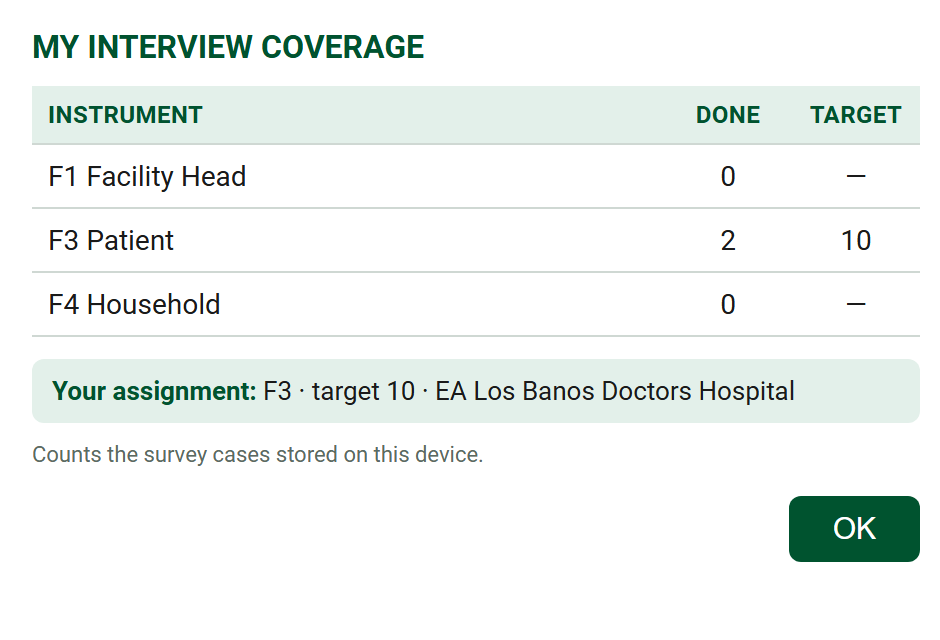
- Coverage report — Survey Interview — view report (supervisor) or View my report (enumerator) shows how many F1, F3, and F4 cases are on the tablet right now, as a table with each survey on its own line — Done vs Target. For a supervisor that is what has been collected into the hub; for an enumerator it is their own interviews. An enumerator who has received an assignment also sees their target for the EA.
- EA map — View EA on Map shows the enumeration area with reference points. The base map is bundled with the app, so it renders even with no signal.
8. Syncing data
Enumerators still sync directly the same way: from a survey’s case list, tap Synchronize, sign in with your CSWeb account, and only new or changed cases are sent. Do it at least once at the end of each field day. The supervisor Collect → Relay path (§5–§6) is the offline backup for areas with no signal — both paths land in the same place on the server and merge by case key.
Troubleshooting
- “Incorrect password.” — re-type carefully; if it persists, ask your coordinator to check your account.
- “Unknown username.” — you may not be in this build yet, or it’s out of date — update LoginApp (§1), then ask your coordinator if still missing.
- “No role found from login…” — close and sign in again through LoginApp (don’t open the menu app on its own).
- “Couldn’t connect over Bluetooth…” — turn Bluetooth on on both tablets, make sure the host started their item first (Assign / Collect), then retry the connecting side.
- A survey item does nothing — that survey isn’t installed on this tablet; add it from the server, then retry.
- Old screens after an update — update or remove + re-add LoginApp (§1) and test again.
Support
For credentials, access, or anything not covered here, contact your survey coordinator or team supervisor. A screenshot of the screen and the questionnaire number help us resolve issues faster.